

e-B walkthrough · YA 2025
How to file Form B on MyTax, screen by screen.
The e-B is five screens: your particulars, contact and bank details, the income section (the big one), reliefs, and a summary you check before signing. This walkthrough uses real screenshots from an actual YA 2025 filing — mine — with personal details blacked out. Deadline if you're doing this now: 30 June, or 15 July on e-Filing.
Before you start: three things
One, log in at mytax.hasil.gov.my and choose e-Filing, then e-B (not e-BE — if you're unsure which you are, settle it in 30 seconds here), then the year of assessment. Two, have your numbers ready: gross income per business, expenses by category, equipment purchases, and your relief receipts. Three, block out a quiet hour. The form auto-saves as you click Save on each section, so you can stop and come back — but momentum helps.
Screen 1 of 5
Particulars of Individual
Mostly pre-filled from LHDN's records — your name, TIN and IC arrive already locked in. You confirm citizenship, marital status as at 31 December, and the type of assessment (self, or joint with a spouse). The "record-keeping" question asks whether you keep proper records: answering honestly matters, because record-keeping is a legal duty with its own fine.
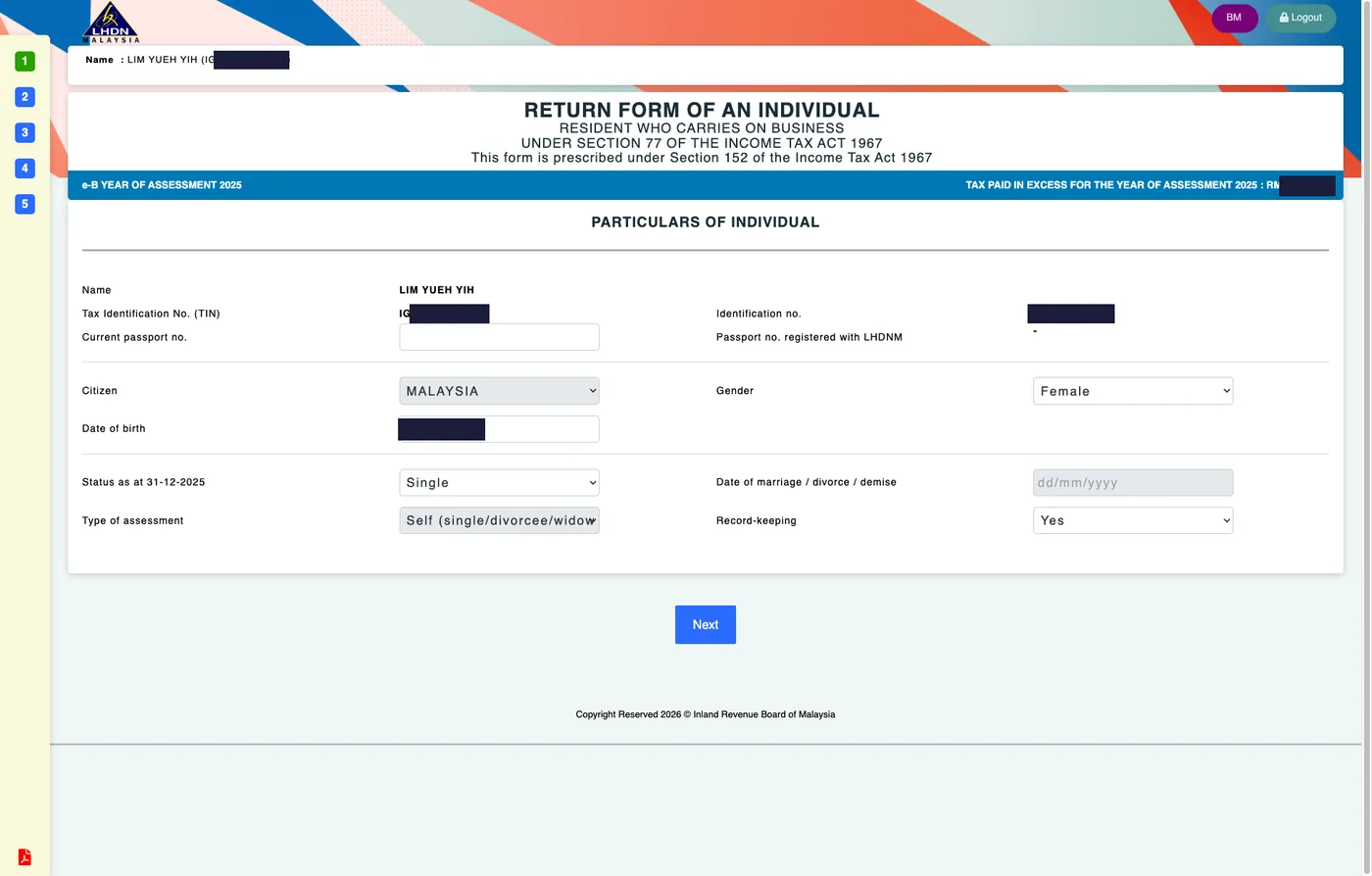
Screen 1 — identity details are pre-filled; you confirm status and type of assessment. (Personal details blacked out.)
Screen 2 of 5
Other Particulars
Contact details, employer number if you also hold a job, and three parts worth slowing down for. The e-Commerce question: if you sell or earn through platforms, answer Yes and tick the model that fits (online sales, e-hailing, digital services). The refund bank account: must be your own, active, non-joint account — this is where any overpaid tax comes back to you. The addresses: business premise can simply be your home address if that's where you work. The Incentive Claim table at the bottom doesn't apply to most freelancers — leave it empty unless you hold an approval letter.
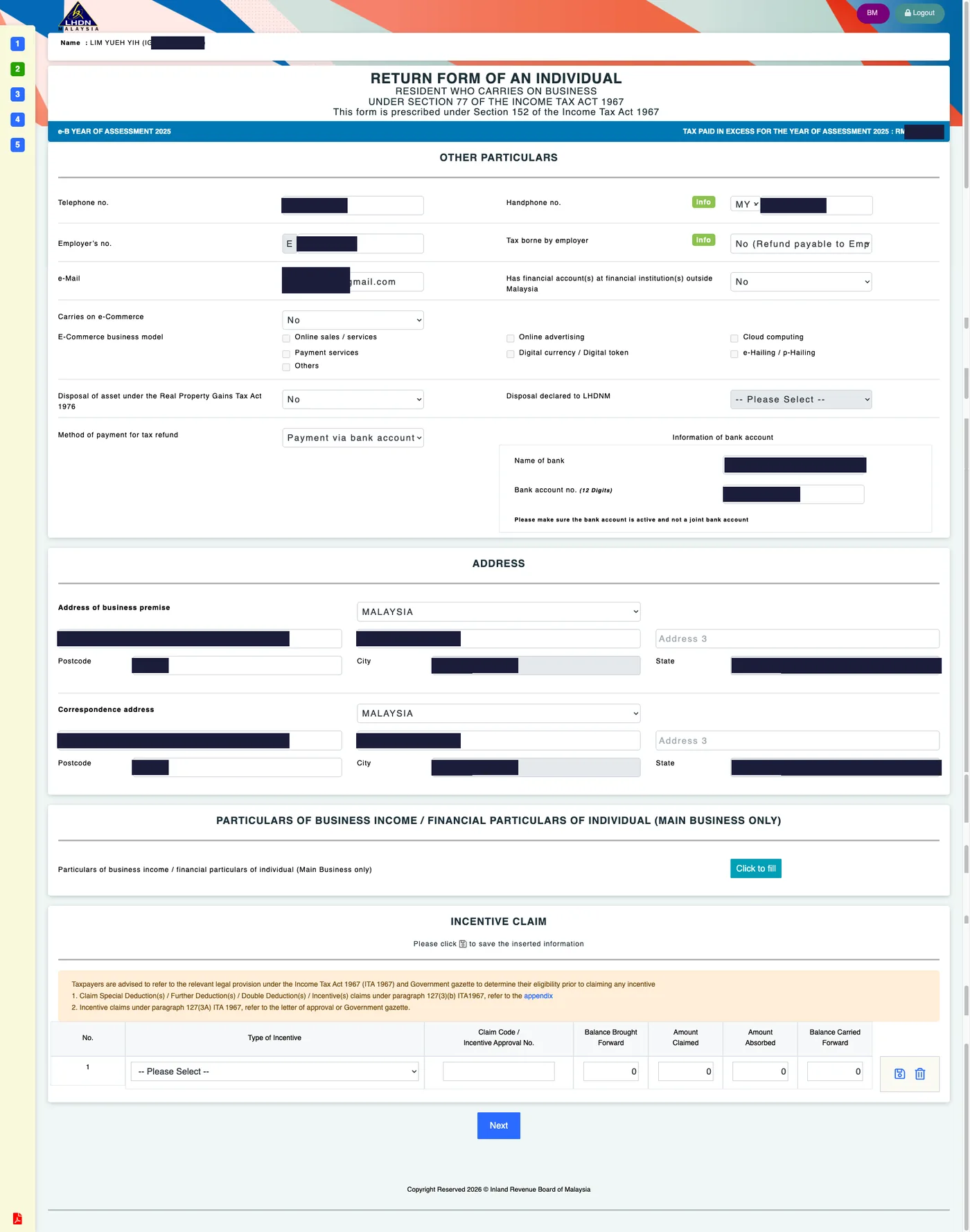
Screen 2 — contact, e-Commerce flags, refund bank account, and addresses. (Personal details blacked out.)
Screen 3 of 5 · part 1
Business income: the "Click to fill" sub-form
Screen 3 is where the real work happens. Click "Click to fill" next to "Particulars of business income" and a sub-form opens for your main business. The top section covers business losses (skip it if you had none); below it sit the financial particulars: business code (search by your activity), then the Statement of Profit or Loss.
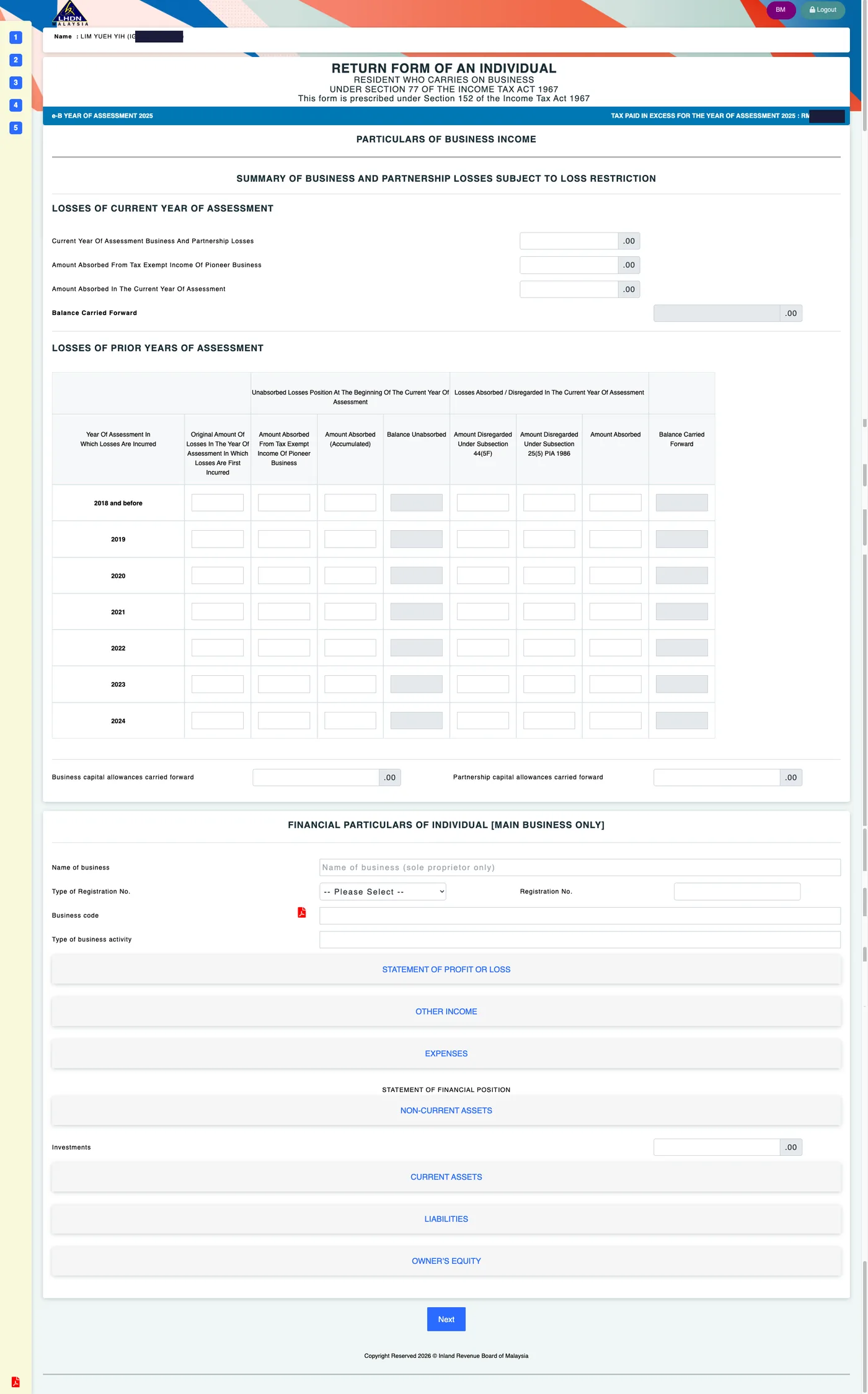
The business income sub-form — losses at the top (most people skip), financial particulars below.
Sales or turnover is your gross income from the business for the year — everything clients and platforms paid you, before any costs. The inventory and cost-of-production rows mostly apply to people selling physical goods; service freelancers usually leave them empty.
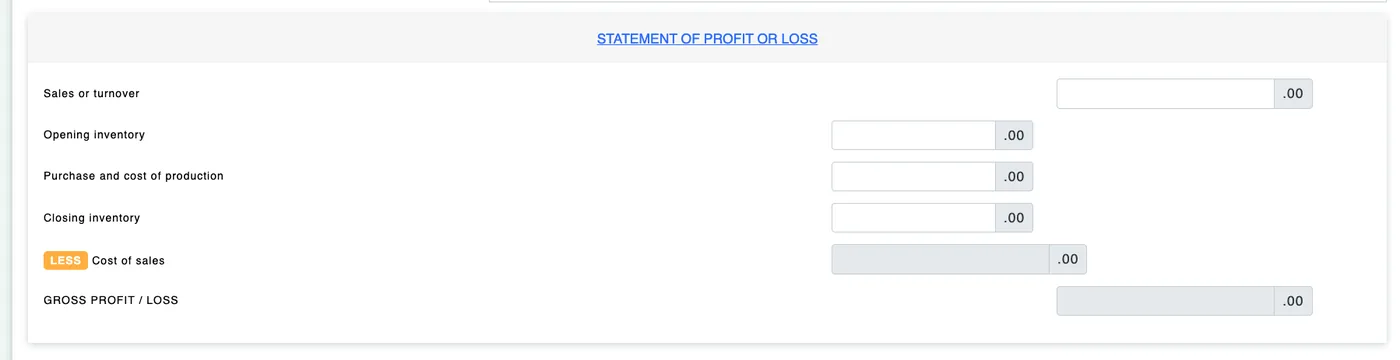
Statement of Profit or Loss — Sales/turnover = your gross income for the year.
Other income catches business income that isn't your core sales: interest on the business account, rental of business assets, and so on. Most freelancers leave this section zero.
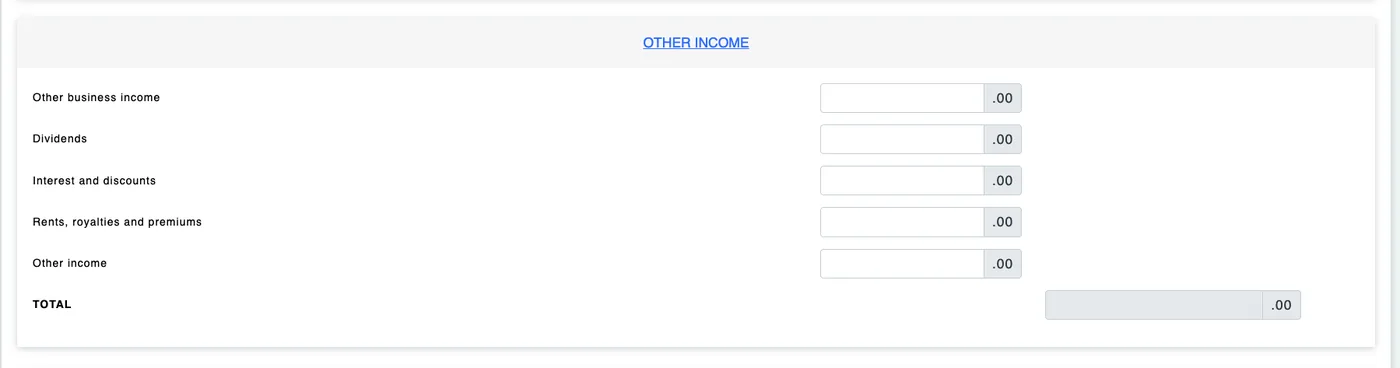
Other income — usually zeros for a typical freelancer.
Expenses is where your deductions live — and where good records pay off in actual ringgit. Map your costs to the closest rows: software and hosting fit "other expenses", outsourced work fits "contracts and subcontracts", client-related travel fits "travelling and transport". Only claim the business share of mixed-use costs, and only what you can evidence — the full deductible-expenses rundown is here.
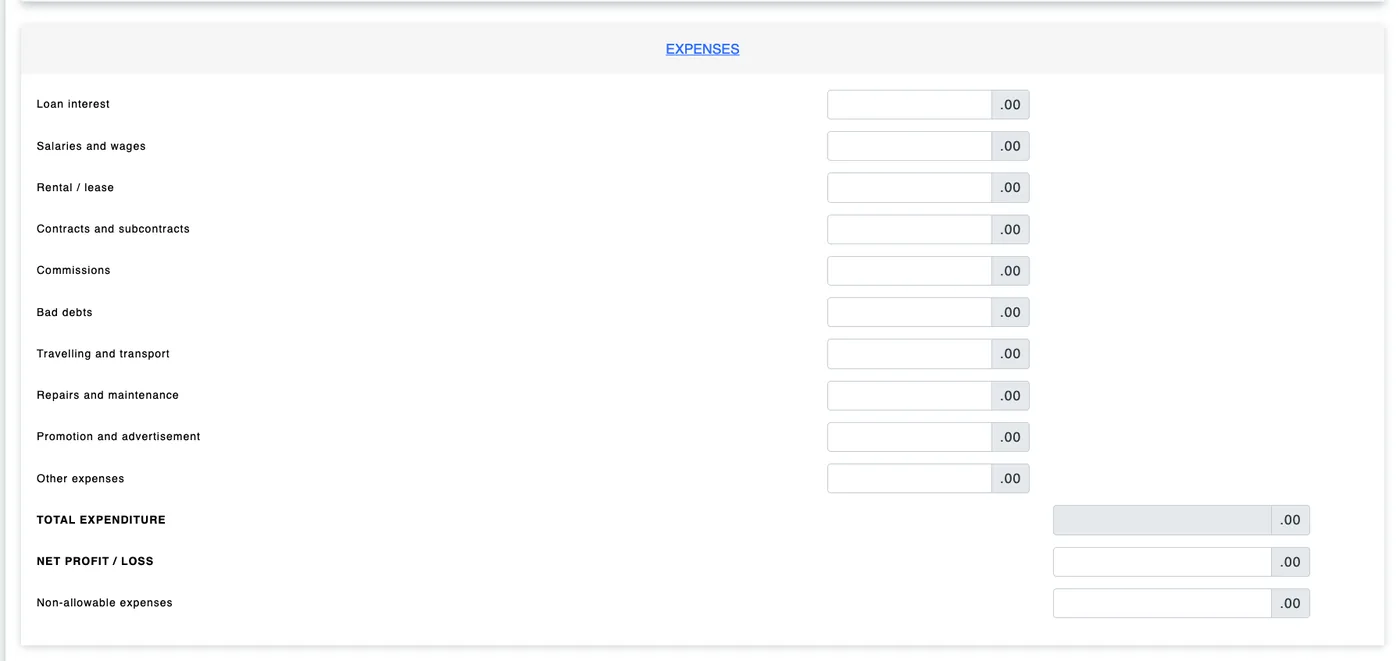
The expenses grid — your deductions. Net profit/loss computes at the bottom.
Then comes the Statement of Financial Position — a light balance sheet. Don't panic: fill what you actually have and leave the rest zero. For most freelancers that's equipment under non-current assets, cash at bank under current assets, any business loan under liabilities, and the capital/drawings rows under owner's equity.
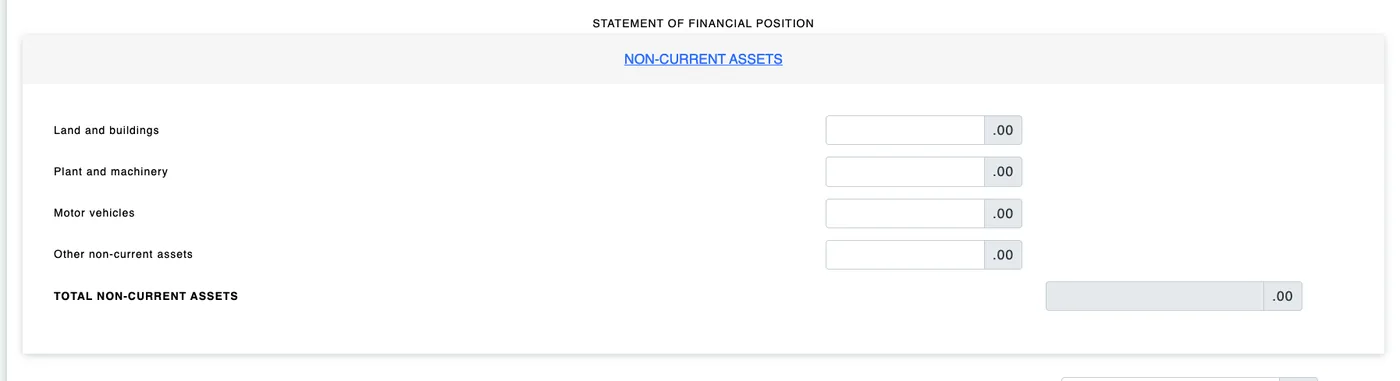
Non-current assets — your equipment and vehicles, if any.
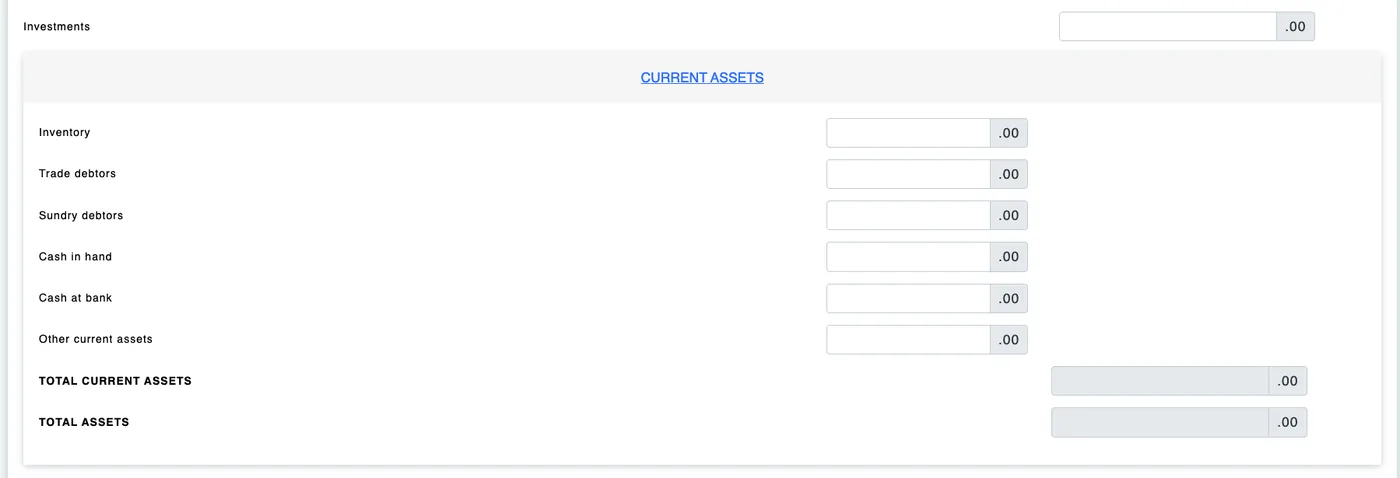
Current assets — cash at bank is the row most freelancers actually use.
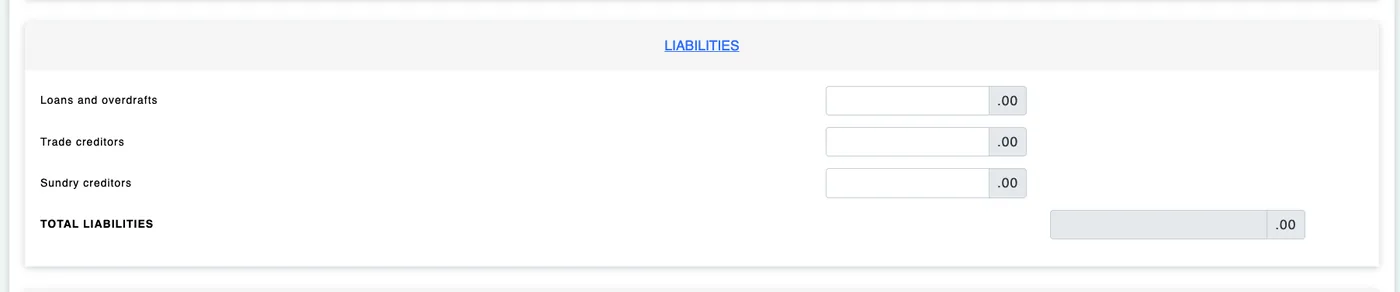
Liabilities — business borrowings, if any.
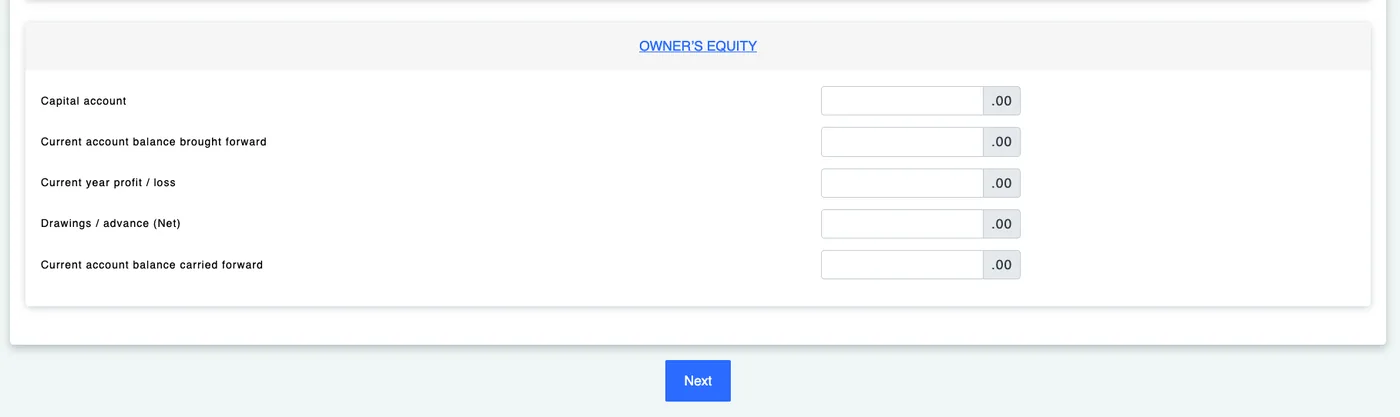
Owner's equity — capital in, profit for the year, drawings out.
Screen 3 of 5 · part 2
Statutory income and total income
Back on the main screen, your business profit flows into the statutory income rollup. Add employment income here if you have a job (from your EA form), plus dividends, rent or interest if applicable. Three rows deserve attention: MTD (tax your employer already deducted), Self installments / CP500 (prepayments LHDN billed you), and the donations row — gifts to approved bodies, capped at 10% of aggregate income. The foreign-income "Click to fill" tables only apply if you received income from outside Malaysia — most filers click straight past them.
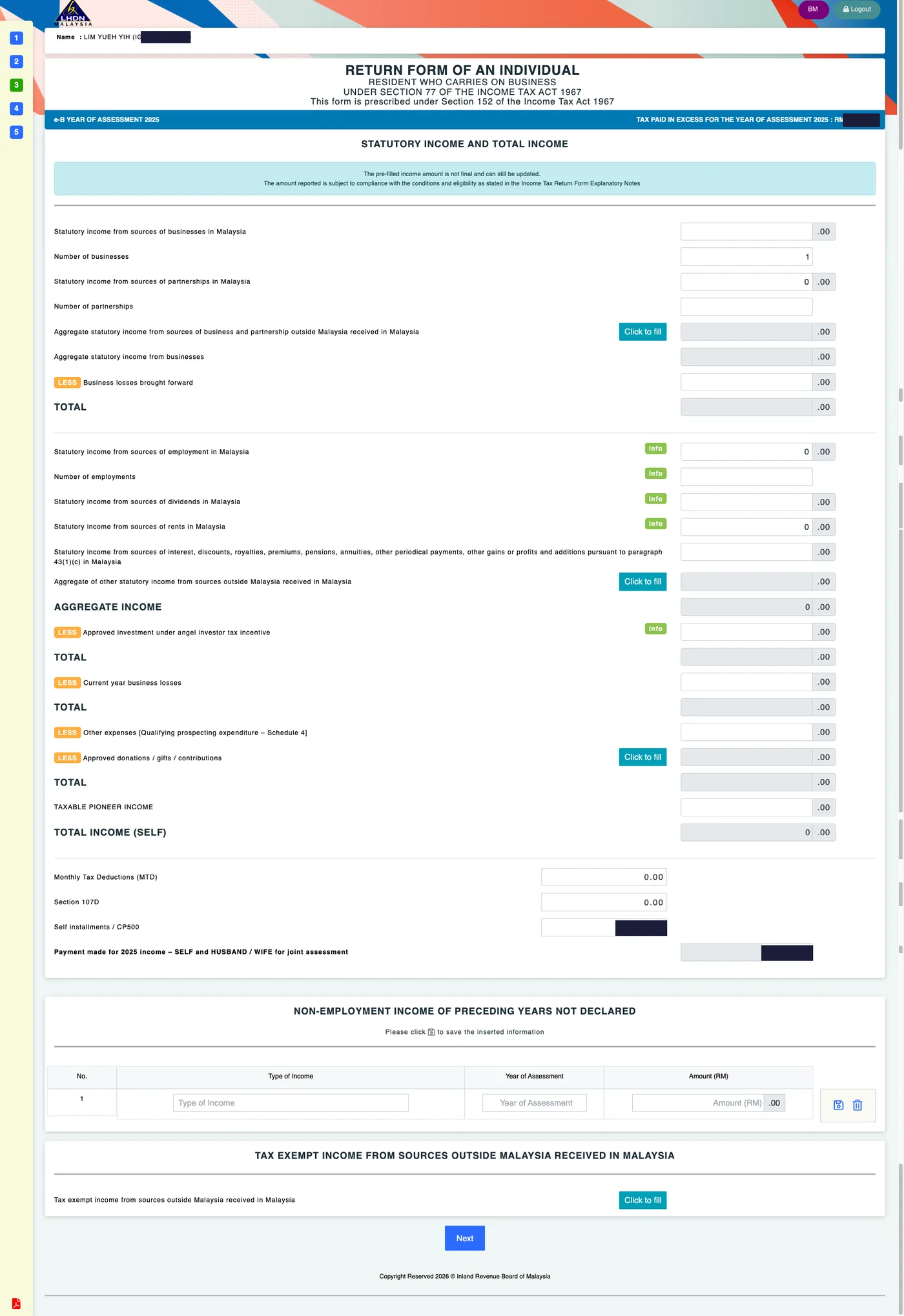
Screen 3 main page — profit flows in, MTD and CP500 prepayments are credited. (Amounts blacked out.)
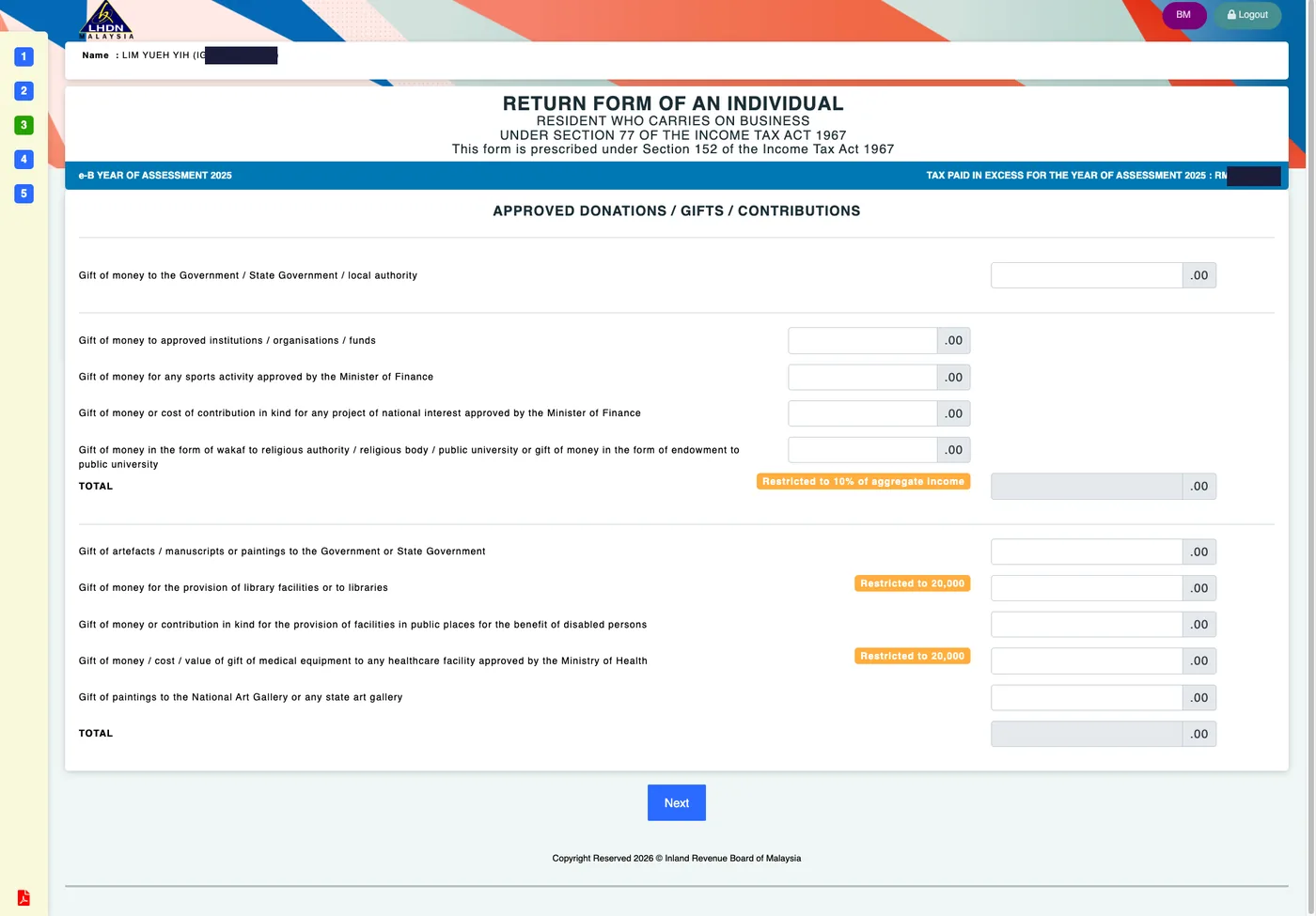
Donations to approved bodies — note the 10% of aggregate income restriction.
Screen 4 of 5
Reliefs
The screen that decides how much you actually pay. Individual relief (RM 9,000) is automatic; everything else needs you to type the amount you're claiming — medical, lifestyle, insurance, EPF (including voluntary i-Saraan contributions), SOCSO, education, children, parents' medical. Two rules keep you safe: claim only what you hold receipts for, and respect each cap shown on screen. Reliefs are identical for Form B and Form BE — no freelancer discount, no freelancer penalty.
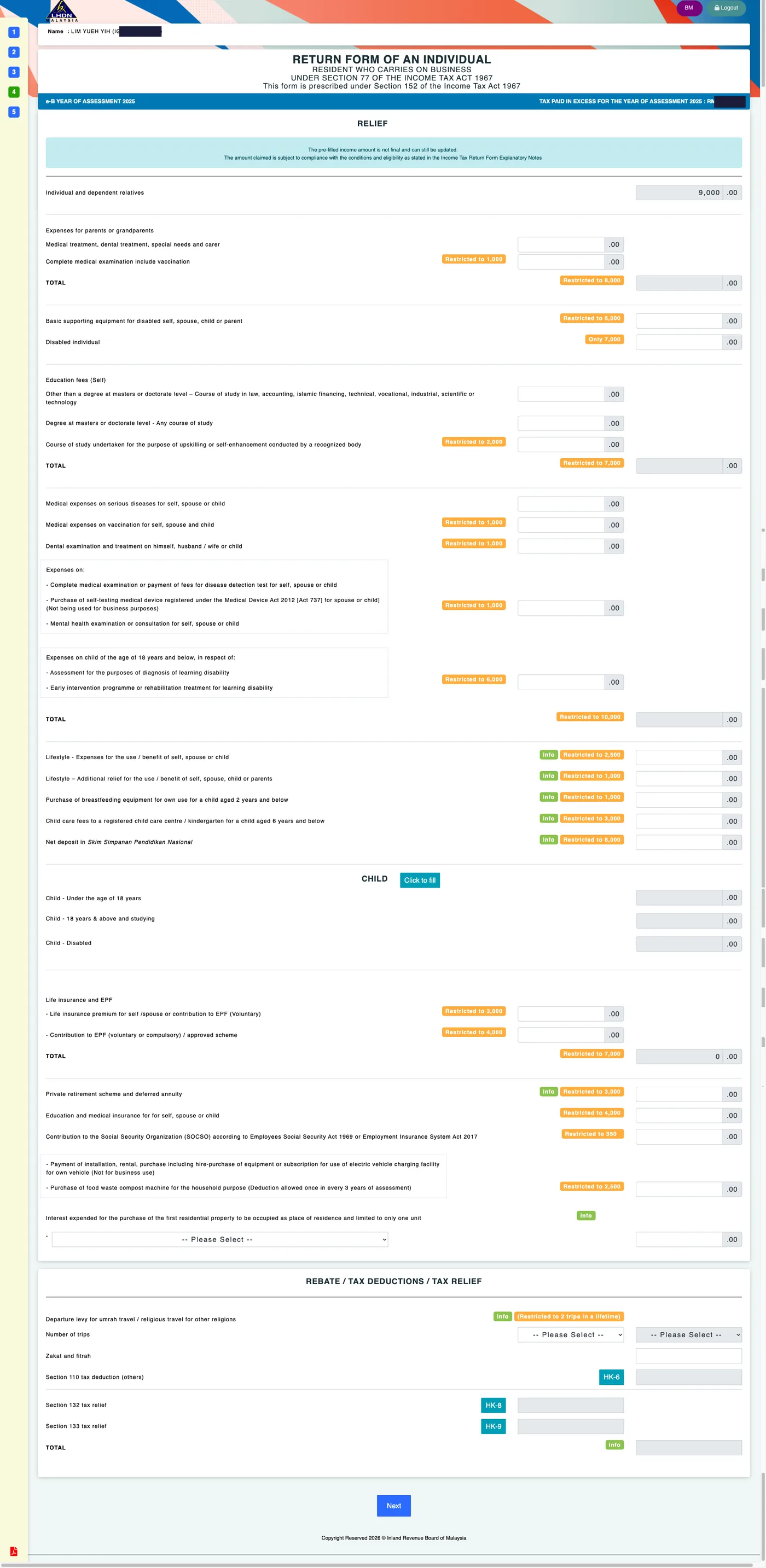
Screen 4 — every relief line with its cap. Type only what you can evidence.
Screen 5 of 5
Summary: the moment of truth
The summary computes everything: total income, minus reliefs, equals chargeable income; tax charged; minus the rebate (RM 400 if chargeable income is RM 35,000 or below), zakat, MTD and CP500 payments. The last line tells you the verdict — tax payable (settle it by the same deadline as the form, or the 10% + 5% surcharge applies) or tax paid in excess (a refund, headed to the bank account from screen 2). Check every line against your own numbers before moving on.
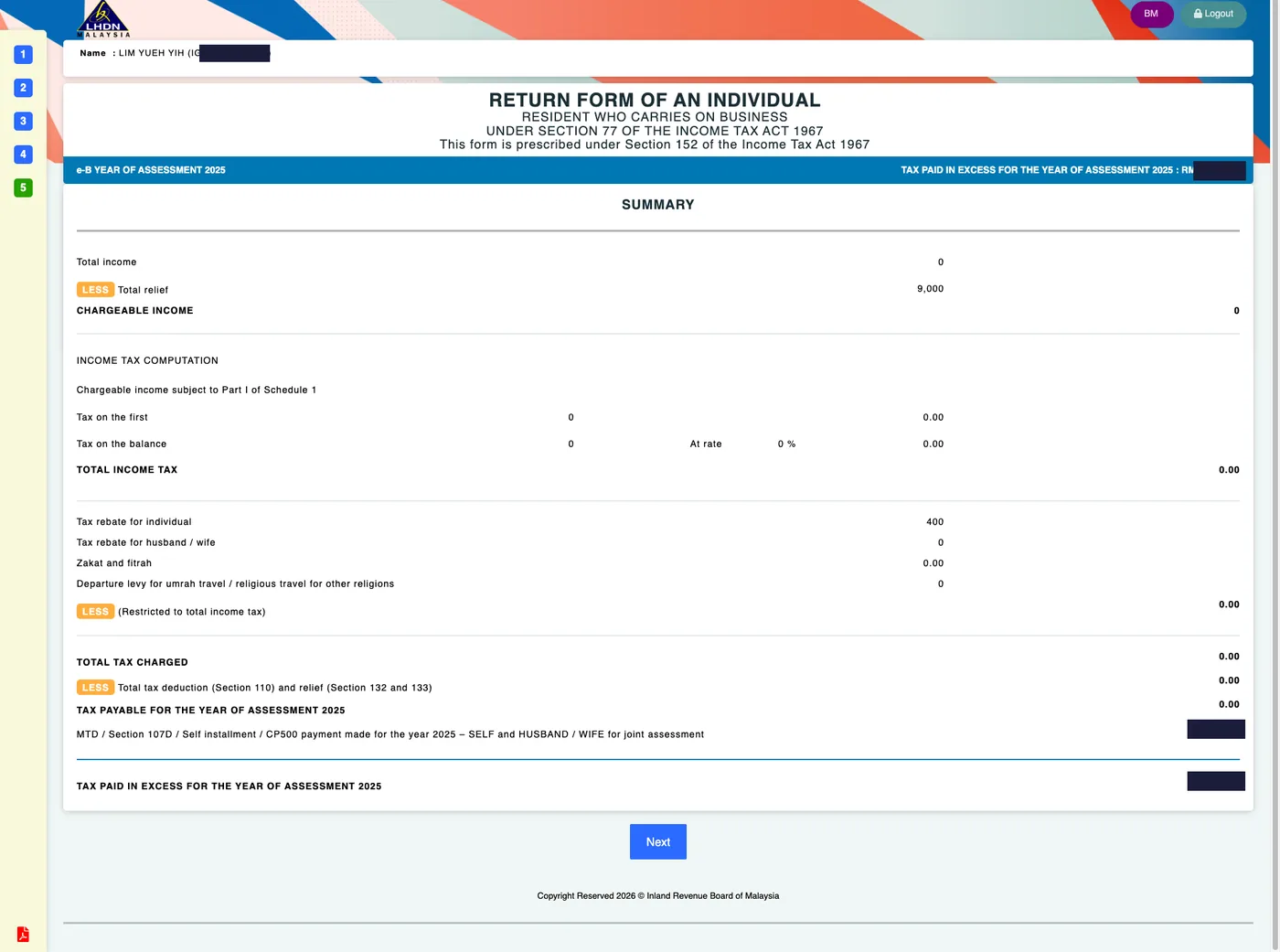
Screen 5 — the full computation. This filing ended in a refund. (Amounts blacked out.)
After the summary, the declaration page asks you to confirm the return is true and complete — that legal responsibility is yours, which is exactly why you checked the pre-filled numbers. Sign with your digital certificate, submit, and download both the acknowledgement receipt and the e-B copy. Keep them, and every receipt behind them, for 7 years.
Frequently asked questions
Do I really need to fill the balance sheet (assets and liabilities) section?
The Financial Particulars section is part of the e-B's main business form, so fill in what you actually have. Many freelancers genuinely have just cash at bank, some equipment, and their capital account. Fill the rows that apply to you and leave the rest at zero — accurate and simple beats invented numbers.
The income fields are pre-filled. Should I trust them?
Treat pre-filled amounts as a starting point, not the truth. LHDN pre-fills from e-Invoice data, employer filings and CP500 records, but the legal responsibility for the final numbers is yours. Check every pre-filled figure against your own records before you sign.
I submitted e-B but found a mistake. Can I fix it?
Yes. If the deadline hasn't passed, you can amend through MyTax. After the deadline, you can file an Amended Return (under Section 77B) within 6 months of the filing due date. Under-declared income corrected voluntarily is penalised far more lightly than under-declaration LHDN finds on its own.
Where does my CP500 installment money show up?
On the Statutory Income screen (step 3) under "Self installments / CP500", and again in the step 5 Summary, where it's deducted from your tax charged. If you paid installments and the field shows zero, stop and check your payment records on MyTax before submitting.
What do I get after I submit?
An acknowledgement receipt and a copy of your e-B. Download both PDFs and keep them with your records — LHDN can ask for supporting documents up to 7 years back, and the acknowledgement is your proof of on-time filing.
Sources
The hard part of e-B isn't the clicking — it's arriving with the numbers. MyTaxMate tracks your income, expenses and relief receipts all year, so when you sit down at screen 3 you're copying figures, not reconstructing twelve months from bank statements at 11pm on 14 July.
See how it works